In this post, we’ll show how to install a Harbor as a private Docker image registry using Ansible.
· Prerequisites
· Overview
∘ What is Harbor?
∘ Key Features
∘ Architecture
∘ Why use Vagrant and Ansible?
· Setup Harbor
∘ Project structure
∘ Vagrantfile
∘ Create an Ansible playbook
∘ Install Docker and its dependent components.
∘ Install and configure Harbor
∘ Run playbooks
∘ Go further
· Conclusion
· References
Prerequisites
This is the list of all the prerequisites:
Overview
What is Harbor?
Harbor is an open-source trusted cloud native registry project that stores, signs, and scans content. Harbor extends the open-source Docker Distribution by adding the functionalities usually required by users such as security, identity, and management. Having a registry closer to the build- and-run environment can improve the image transfer efficiency. Harbor supports replication of images between registries, and also offers advanced security features such as user management, access control, and activity auditing.
Key Features
- Cloud-native registry: With support for both container images and Helm charts, Harbor serves as a registry for cloud-native environments like container runtimes and orchestration platforms.
- Role-based access control: Users access different repositories through ‘projects’ and a user can have different permissions for images or Helm charts under a project.
- Policy based replication: Images and charts can be replicated (synchronized) between multiple registry instances based on policies with using filters (repository, tag, and label). Harbor automatically retries a replication if it encounters any errors. This can be used to assist load balancing, achieve high availability, and facilitate multi-datacenter deployments in hybrid and multi-cloud scenarios.
- Vulnerability Scanning: Harbor scans images regularly for vulnerabilities and has policy checks to prevent vulnerable images from being deployed.
- LDAP/AD support: Harbor integrates with existing enterprise LDAP/AD for user authentication and management, and supports importing LDAP groups into Harbor that can then be given permissions to specific projects.
- OIDC support: Harbor leverages OpenID Connect (OIDC) to verify the identity of users authenticated by an external authorization server or identity provider. Single sign-on can be enabled to log into the Harbor portal.
- Image deletion & garbage collection: System admin can run garbage collection jobs so that images(dangling manifests and unreferenced blobs) can be deleted and their space can be freed up periodically.
- Notary: Support signing container images using Docker Content Trust (leveraging Notary) for guaranteeing authenticity and provenance. In addition, policies that prevent unsigned images from being deployed can also be activated.
- Graphical user portal: User can easily browse, search repositories, and manage projects.
- Auditing: All the operations to the repositories are tracked through logs.
- RESTful API: RESTful APIs are provided to facilitate administrative operations, and are easy to use for integration with external systems. An embedded Swagger UI is available for exploring and testing the API.
- Easy deployment: Harbor can be deployed via Docker compose as well as Helm Chart, and a Harbor Operator was added recently as well.
Architecture
With Harbor V2.0, users can manage images, manifest lists, Helm charts, CNABs, OPAs among others which all adhere to the OCI image specification. It also allows for pulling, pushing, deleting, tagging, replicating, and scanning such kinds of artifacts. Signing images and manifest lists are also possible now.
The diagram shown below is the overall architecture of the Harbor registry.

Why use Vagrant and Ansible?
Vagrant is a tool for building and managing virtual machine environments in a single workflow. With an easy-to-use workflow and focus on automation, Vagrant lowers development environment setup time, increases production parity, and makes the “works on my machine” excuse a relic of the past. It can be used with multiple providers such as Oracle VirtualBox, VMware, Docker, and so on. It allows us to create a disposable environment by making use of configuration files.
Ansible is an open-source IT automation engine that automates provisioning, configuration management, application deployment, orchestration, and many other IT processes. It is free to use, and the project benefits from the experience and intelligence of its thousands of contributors.
Setup Harbor
Harbor can be installed in several ways:
- Use Helm to install Harbor on a Kubernetes cluster, to make Harbor highly available
- Deploy a VMware VM via an OVA VIC (VMware vSphere Integrated Containers) which contains, among other things, a pre-installed and pre-configured Harbor server
- On a system with Docker support
- Online installer: The online installer downloads the Harbor images from Docker hub. For this reason, the installer is very small in size.
- Offline installer: Use the offline installer if the host to which are deploying Harbor does not have a connection to the Internet. The offline installer contains pre-built images, so it is larger than the online installer.
We will use the Docker Support installation with the offline installer for this story.
Project structure
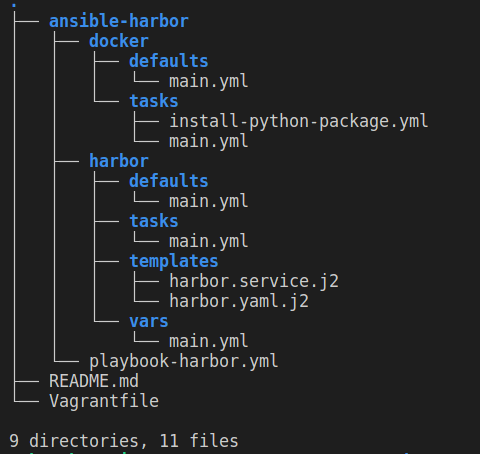
Here is the structure of the project which will install docker and Harbor.
Vagrantfile
First, we need to create a file named Vagrantfile, inserting the code below:
playbook_file = 'ansible-harbor/playbook-harbor.yml'

Vagrant.configure("2") do |config|
    config.vm.box = "geerlingguy/centos7"
    config.vm.hostname = "registry.harbor.local"
    config.vm.network "private_network", ip: "192.168.56.11"

    config.vm.provider "virtualbox" do |vb|
      vb.cpus = 4
      vb.memory = 4096
    end

    config.vm.provision "ansible_local" do |ansible|
      ansible.playbook = playbook_file
      ansible.verbose = true
    end

end
The ansible_local provisioner should install Ansible on the Centos machine.
Create an Ansible playbook
Create a directory named ansible-harbor in the same directory as the Vagrantfile. Then, create a file playbook-harbor.ymlin the directory ansible-harborand add the code below.
- hosts: all
  become: yes
  become_user: root
  tasks:
    - shell: whoami
  roles:
    - docker
    - harbor
Two roles in the playbook define the order of execution.
Install Docker and its dependent components.
We need to install Docker first because the Harbor depends on it. We will install the Docker CE (Community Edition) packages and then add a user namedvagrantto the dockergroup.
- name: Ensure old versions of Docker are not installed.
  package:
    name:
      - docker
      - docker-common
      - docker-engine
    state: absent

- name: Install required packages
  yum:
    state: latest
    name:
      - yum-utils
      - device-mapper-persistent-data
      - lvm2
      - git

- name: Add Docker repository.
  get_url:
    url: "{{ docker_yum_repo_url }}"
    dest: '/etc/yum.repos.d/docker-{{ docker_edition }}.repo'
    owner: root
    group: root
    mode: 0644

- name: Install Docker
  package:
   name:
    - docker-{{ docker_edition }}
    - docker-{{ docker_edition }}-cli
    - containerd.io
    - docker-compose-plugin
   state: latest

- name: Add user vagrant to docker group
  user:
    name: vagrant
    groups: docker
    append: yes

- name: Start Docker service
  service:
   name: docker
   state: started
   enabled: yes
Install and configure Harbor
List of actions that the harbor playbook will do:
- Create a harbor installation directory
- Download the latest version of Harbor
- Setting up the harbor installation via the configuration file ‘harbor.yml’
- Install harbor via the installer script ‘install.sh’
- Create harbor service
Add the following content in the YAML file:
---
- name: "Creating Harbor directory... ({{ HARBOR_INSTALL_DIR }})"
  file:
    path: "{{ HARBOR_INSTALL_DIR }}"
    state: directory
    mode: "ug=rxw,o=rx"

- name: Unzip Harbor sources
  unarchive:
    src: "{{ HARBOR_RELEASE_URL }}"
    dest: "{{ HARBOR_INSTALL_DIR }}/"
    remote_src: yes

- name: Copying over harbor.yml
  template:
    src: harbor.yaml.j2
    dest: "{{ HARBOR_INSTALL_DIR }}/harbor/harbor.yml"

- name: If ADD_NOTARY=false, execute install.sh
  shell: "{{HARBOR_INSTALL_DIR}}/harbor/install.sh"
  args:
    chdir: "{{HARBOR_INSTALL_DIR}}/harbor/"
  when: not ADD_NOTARY

- name: If ADD_NOTARY=true, execute install.sh --with-notary
  shell: "{{HARBOR_INSTALL_DIR}}/harbor/install.sh --with-notary"
  args:
    chdir: "{{HARBOR_INSTALL_DIR}}/harbor/"
  when: ADD_NOTARY

- name: Copy harbor.service
  template:
    src: harbor.service.j2
    dest: /lib/systemd/system/harbor.service

- name: Harbor service enable
  systemd:
    name: harbor
    state: started
    enabled: yes
    daemon_reload: yes

- name: Emit Harbor URL
  command: echo "Harbor can be accessed at, {{harbor_ui_url_protocol}}://{{ harbor_hostname }}:{{ harbor_port }}"
  register: harbor_url

- name: Harbor URL info
  debug: msg="{{ harbor_url.stdout }}"
Run playbooks
Let’s run the stack.
$ cd /path/to/Vagrantfile
$ vagrant up
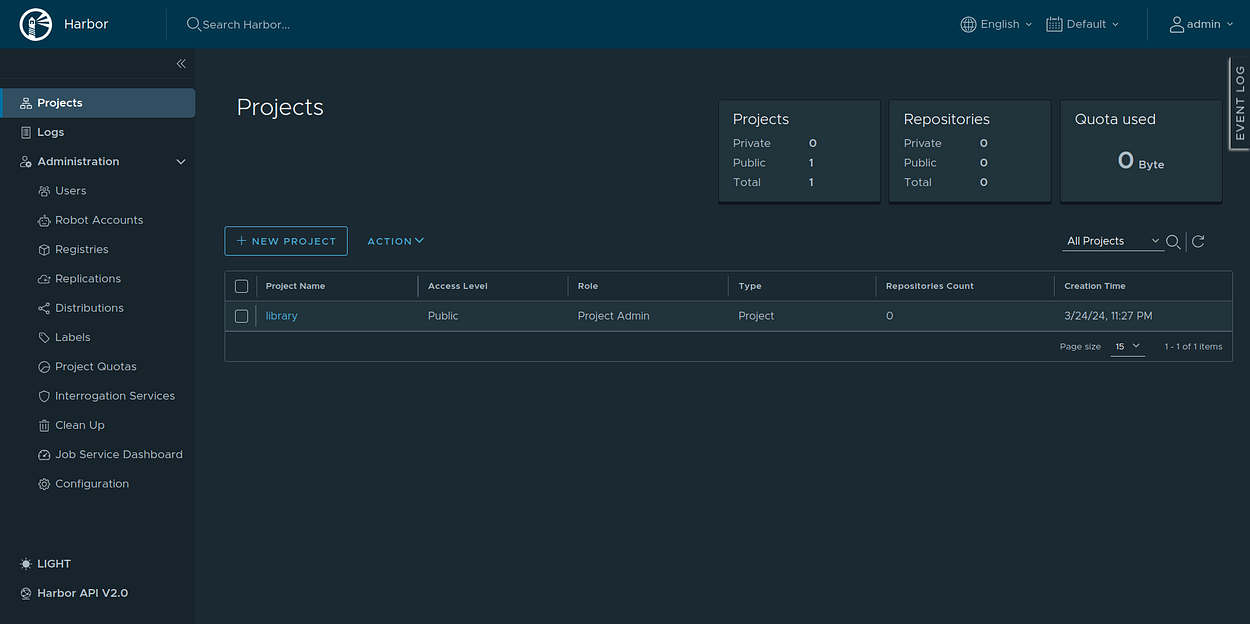
Open the web browser and visit the domain name for the harbor installation. We should now get the login page of the harbor image registry.
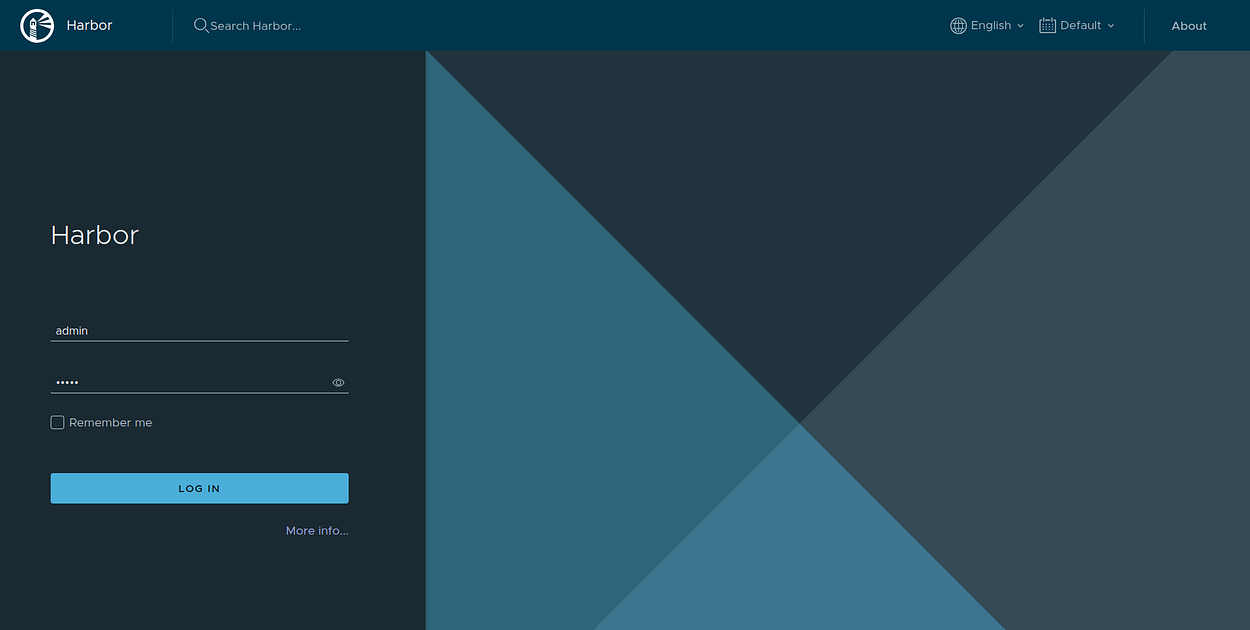
Login with the default user admin and the password that you have configured via the configuration file harbor.yml.
Go further
The registry is now ready to use. Here are some points to take further for a strong Harbor installation.
- Configure HTTPS Access to Harbor
- Installation with Trivy
- Pushing Images to Harbor Registry
- Harbor Administration (Managing Users, Security, Vulnerability Scanning, etc.)
- Building, Customizing, and Contributing to Harbor
Conclusion
Well done !!. In this post, we have seen how to install a Harbor as a private Docker image registry using Ansible.
The complete source code is available on GitHub.
https://www.buymeacoffee.com/boottechnou
You can reach out to me and follow me on Medium, Twitter, GitHub, Linkedln
Thanks for reading!