This post will explain how to interact with the Keycloak server using REST API without any programming language.
· Prerequisites
· Overview
∘ What is Keycloak?
∘ Key Features of Keycloak
· Set up Keycloak
∘ Start Keycloak instance
∘ Create a realm
∘ Securing the Realm
· Invoking Keycloak’s REST endpoints
∘ Get the access token
∘ Create a new user
∘ Get users
· Conclusion
· References
Prerequisites
This is the list of all the prerequisites:
- Docker / Docker-compose installed (optional if you’ve already downloaded and installed Keycloak from https://www.keycloak.org/downloads)
- Postman / insomnia or any other API testing tool.
Overview
What is Keycloak?
Keycloak is an open-source software product to allow single sign-on with identity and access management aimed at modern applications and services. Until April 2023, this WildFly community project was under the stewardship of Red Hat, who use it as the upstream project for their Red Hat build of Keycloak. In April 2023, Keycloak was donated to the CNCF and joined the foundation as an incubating project. — https://en.wikipedia.org/wiki/Keycloak
Key Features of Keycloak
Keycloak provides the following features:
- Single-Sign-On and Single-Sign-Out for browser applications.
- OpenID Connect support.
- OAuth 2.0 support.
- SAML support.
- Identity Brokering — Authenticate with external OpenID Connect or SAML Identity Providers.
- Social Login — Enable login with Google, GitHub, Facebook, Twitter, and other social networks.
- User Federation — Sync users from LDAP and Active Directory servers.
- Kerberos bridge — Automatically authenticate users that are logged in to a Kerberos server.
- Admin Console for central management of users, roles, role mappings, clients, and configuration.
- Account Management console that allows users to centrally manage their account.
- Theme support — Customize all user facing pages to integrate with your applications and branding.
- Two-factor Authentication — Support for TOTP/HOTP via Google Authenticator or FreeOTP.
- Login flows — optional user self-registration, recover password, verify email, require password update, etc.
- Session management — Admins and users themselves can view and manage user sessions.
- Token mappers — Map user attributes, roles, etc., according to how you want them, into tokens and statements.
- Not-before revocation policies per realm, application, and user.
- CORS support — Client adapters have built-in support for CORS.
- Client adapters for JavaScript applications, JBoss EAP, etc.
- Supports any platform/language that has an OpenID Connect Relying Party library or SAML 2.0 Service Provider library.
Set up Keycloak
Start Keycloak instance
The official documentation provides several ways to install a Keycloak server. This story uses the Docker approach. To do so, we will use the Skycloak website to generate the Docker Compose Keycloak file.
Ensure your machine or container platform can provide sufficient memory and CPU for your desired usage of Keycloak. See Concepts for sizing CPU and memory resources for more on how to get started with production sizing.
We’ll use the latest version of Keycloak (currently 26.1.2). Here is the full content of the docker-compose file:
version: "3"
services:
  keycloak:
    image: quay.io/keycloak/keycloak:26.1.2
    command: start-dev
    environment:
      KC_DB: postgres
      KC_DB_URL_HOST: postgres
      KC_DB_URL_DATABASE: keycloak
      KC_DB_USERNAME: keycloak
      KC_DB_PASSWORD: password
      KC_DB_SCHEMA: public
      KEYCLOAK_ADMIN: admin
      KEYCLOAK_ADMIN_PASSWORD: admin
    ports:
      - "8080:8080"
      - "9000:9000"
    depends_on:
      postgres:
        condition: service_healthy
    healthcheck:
      test: ["CMD", "curl", "-f", "http://localhost:9000/health/live"]
      interval: 10s
      timeout: 10s
      retries: 20

  postgres:
    image: postgres:15
    environment:
      POSTGRES_DB: keycloak
      POSTGRES_USER: keycloak
      POSTGRES_PASSWORD: password
    volumes:
      - postgres_data:/var/lib/postgresql/data
    healthcheck:
      test: ["CMD-SHELL", "pg_isready -U keycloak"]
      interval: 10s
      timeout: 5s
      retries: 5

volumes:
  postgres_data:
Let’s start the Keycloak service by running the below command:
$ docker compose up -d
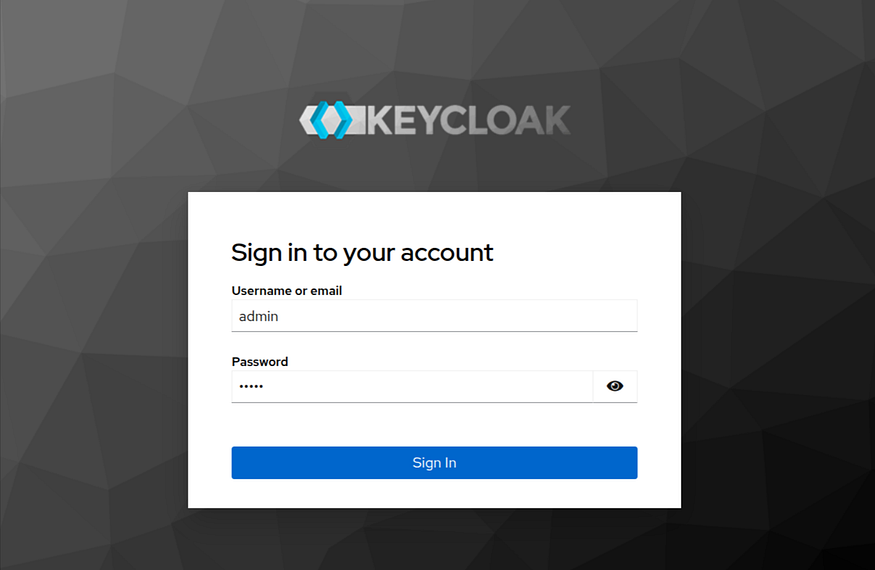
Now, Keycloak is exposed on the local port 8080 and creates an initial admin user with the username admin and password admin.
- In a web browser, go to the http://localhost:8080 URL.
Create a realm
A realm in Keycloak is equivalent to a tenant. Each realm allows an administrator to create isolated groups of applications and users. Initially, Keycloak includes a single realm, called master. Use this realm only for managing Keycloak and not for managing any applications.
- Click Create Realm next to Current realm.
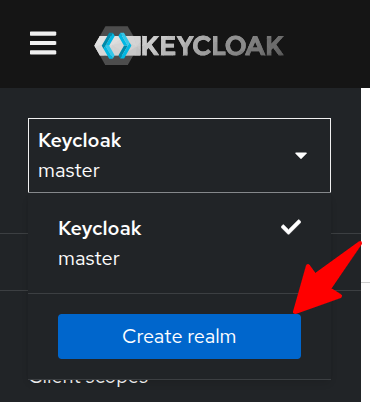
- Enter a name for the realm and click Create.
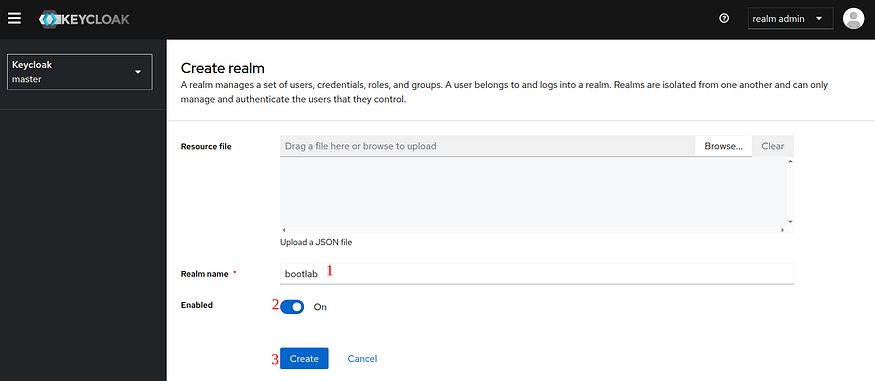
The current realm is now set to the realm you just created. You can switch between realms by clicking the realm name in the top left corner.
Securing the Realm
To secure the realm, start by registering the application with your Keycloak instance:
- Click on “Clients”.
- Click on “Create Client”.
- Complete the form as shown in the following screenshot:

Leave the other data as default and browse until you click the Save button.
- In the Client Settings tab, enable Client Authentication and Save
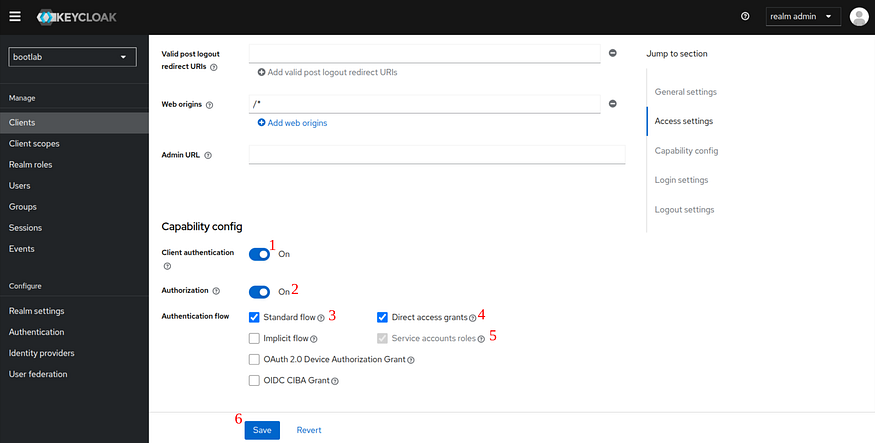
Once registered, a new credentials tab will appear.
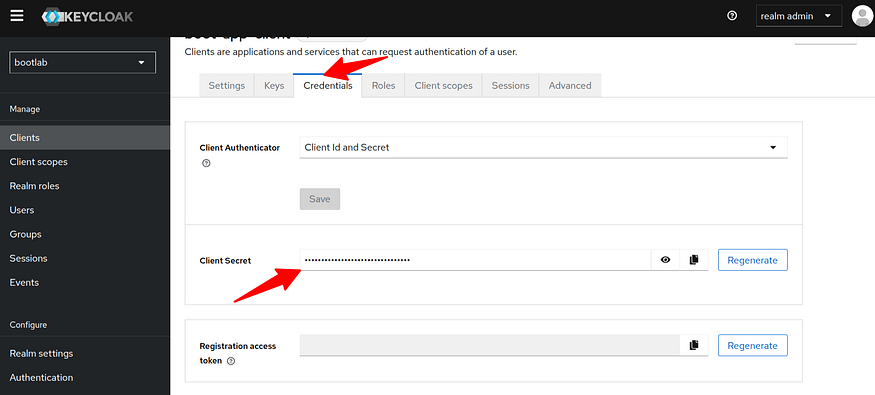
Each OIDC client has a built-in service account that allows it to obtain an access token. We need to add the realm-admin role in the Service Accounts Roles tab to get realm management permission
- Click
Service accounts roles, thenAssign role> realm-admin

This client is now capable of operations such as creating users, provided you include a bearer token from the authorization endpoint.
Invoking Keycloak’s REST endpoints
Keycloak exposes a set of endpoints that applications and services can use to authenticate and authorize their users.
The Keycloak REST API is a set of HTTP endpoints provided by Keycloak that allows you to programmatically interact with and manage all aspects of the Keycloak server.
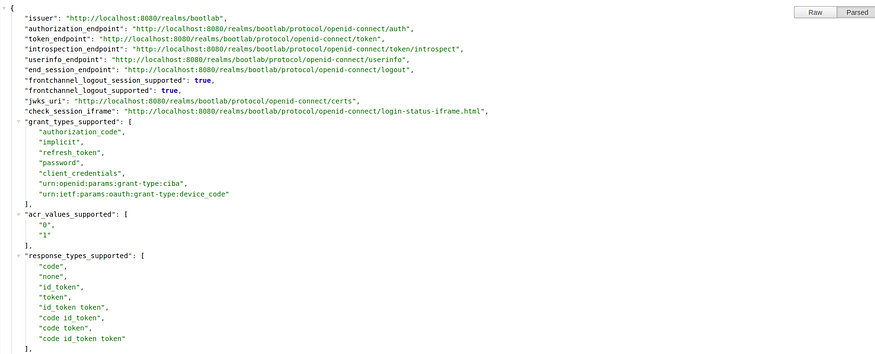
Navigate to the Realm settings tab. Under the General tab, click the OpenID Endpoint Configuration link from the Endpoints section.
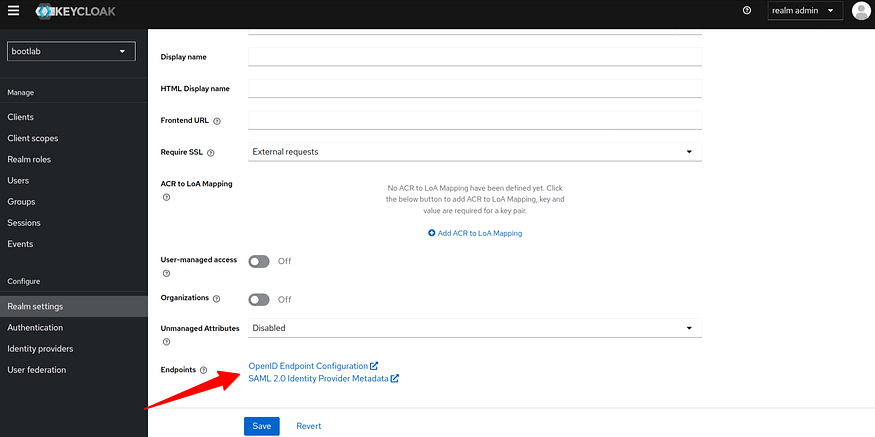
Well-Known URL: http://{your_base_url}/realms/{realm}/.well-known/openid-configuration
Get the access token
To use the Keycloak Admin REST API, we first need to acquire an access token from the Keycloak server.
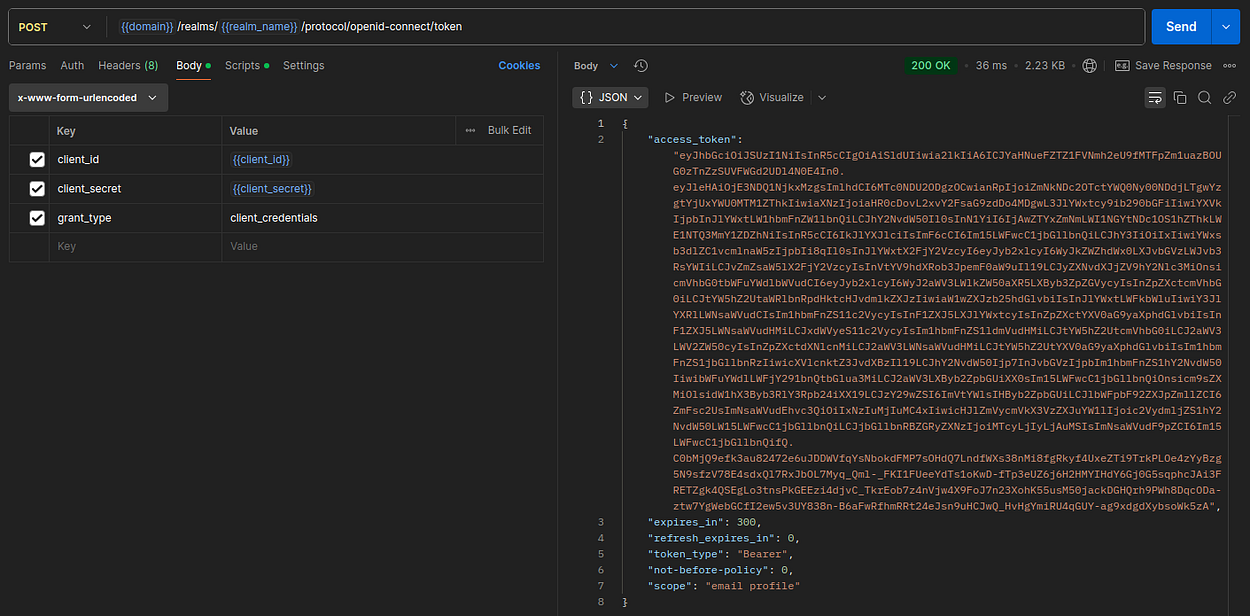
Where,
- {{domain}}— is a host and a port number on which the Keycloak server is running.
- {{realm_name}}— is realm name (my-app-client)
Create a new user
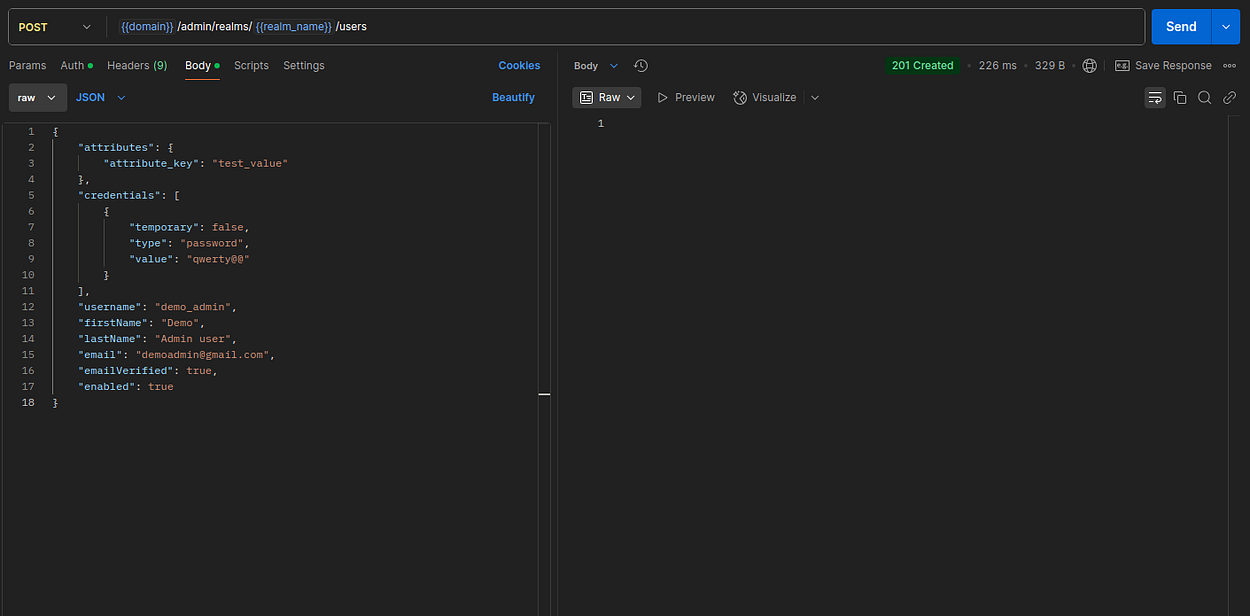
The username must be unique, and the request must have the previously obtained access token in the authorization bearer.
Get users
Get users returns a stream of users, filtered according to query parameters.

Full API documentation is available on the Keycloak website.
Keycloak Admin REST API
Conclusion
Well done !!. In this post, we’ve explained how to call the Keycloak server using REST API.
The complete source code is available on GitHub.
Support me through GitHub Sponsors.
Thank you for reading!! See you in the next post.