Hello everyone! In this post, we’ll show how to use Prometheus and Grafana to monitor a Spring Boot app.
· Prerequisites
· Overview
∘ What is Prometheus?
∘ What is Grafana Open Source?
· Getting Started
∘ Spring Boot Application
∘ Set Up Prometheus and Grafana using Docker
∘ Visualizing
· Conclusion
· References
Prerequisites
This is the list of all the prerequisites:
- Spring Boot 3+
- Maven 3.8.+
- Java 17
- Docker / Docker compose installed
Overview
What is Prometheus?
Prometheus is an open-source systems monitoring and alerting toolkit originally built at SoundCloud. Since its inception in 2012, many companies and organizations have adopted Prometheus, and the project has a very active developer and user community. It is now a standalone open-source project and maintained independently of any company. To emphasize this, and to clarify the project’s governance structure, Prometheus joined the Cloud Native Computing Foundation in 2016 as the second hosted project, after Kubernetes.
Prometheus collects and stores its metrics as time series data, i.e. metrics information is stored with the timestamp at which it was recorded, alongside optional key-value pairs called labels.
What is Grafana Open Source?
Grafana open source is open-source visualization and analytics software. It allows you to query, visualize, alert on, and explore your metrics, logs and traces no matter where they are stored. It provides you with tools to turn your time-series database (TSDB) data into insightful graphs and visualizations.
Getting Started
Spring Boot Application
We’ll start by creating a simple Spring Boot project from start.spring.io.

The spring-boot-actuator module provides all of Spring Boot’s production-ready features. Actuator endpoints allow you to monitor and interact with your application. By default, all web endpoints are not exposed; we need to enable them. In our case, we expose promotheus ,health and metrics endpoints.
management:
  endpoint:
    health:
      show-details: always
      show-components: always
  endpoints:
    web:
      exposure:
        include: ['health', 'prometheus', 'metrics']
That is all for our Spring Boot API setup. As with any Spring Boot application, we can start it with the following command:
./mvnw spring-boot:runOnce started, we can browse to http://localhost:8080/actuator, where we can see all the available endpoints. The one we need and will use to monitor this application is http://localhost:8080/actuator/prometheus

Set Up Prometheus and Grafana using Docker
- Configuring Prometheus
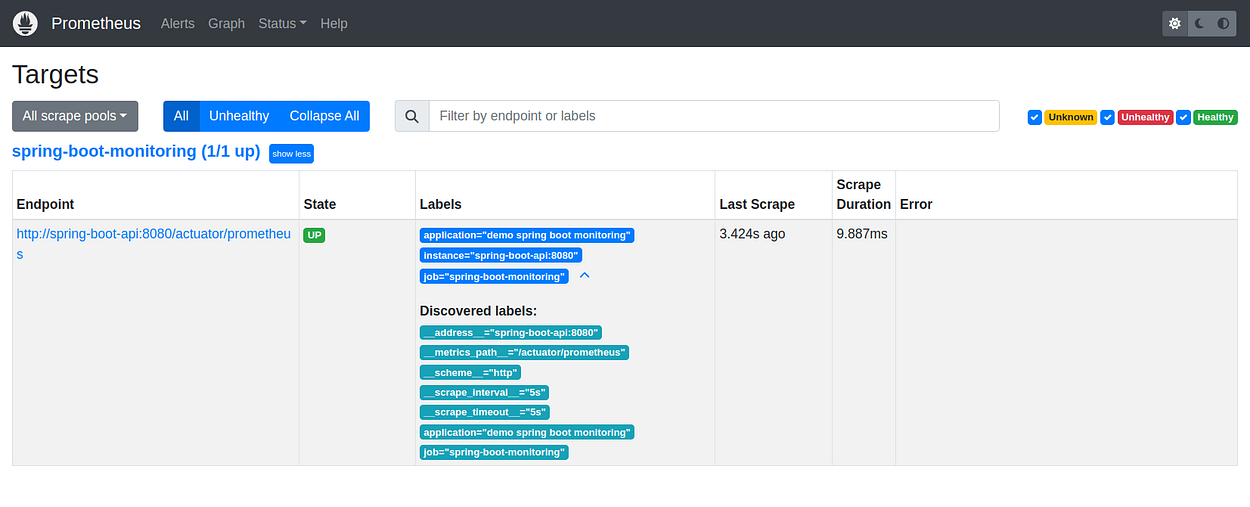
Prometheus collects metrics from targets by scraping metrics from HTTP endpoints. The following basic Prometheus configuration a file named prometheus.yml:
global:
  scrape_interval: 15s # By default, scrape targets every 15 seconds.

  # Attach these labels to any time series or alerts when communicating with
  # external systems (federation, remote storage, Alertmanager).
  external_labels:
    monitor: 'codelab-monitor'

# A scrape configuration containing exactly one endpoint to scrape:
# Here it's our Spring Boot api.
scrape_configs:
  # The job name is added as a label `job=<job_name>` to any timeseries scraped from this config.
  - job_name: 'spring-boot-monitoring'

    # Override the global default and scrape targets from this job every 5 seconds.
    scrape_interval: 5s
    # metrics_path defaults to '/metrics'
    # scheme defaults to 'http'.
    metrics_path: '/actuator/prometheus'
    static_configs:
      - targets: ['spring-boot-api:8080']
        labels:
          application: 'demo spring boot monitoring'
By default, Prometheus looks for the file prometheus.yml in the current working directory. This behavior can be changed via the --config.file command line flag. For example, some Prometheus installers use it to set the configuration file to /etc/prometheus/prometheus.yml.
- Grafana: Provision the data source
Grafana ships with built-in support for Prometheus. We can manage data sources in Grafana by adding YAML configuration files in the provisioning/datasources directory. Each config file can contain a list of datasources to add or update during startup. If the data source already exists, Grafana reconfigures it to match the provisioned configuration file.
Here is the data source YAML that allows Grafana to connect with Prometheus.
apiVersion: 1
datasources:
  - name: Prometheus
    type: prometheus
    access: proxy
    # Access mode - proxy (server in the UI) or direct (browser in the UI).
    url: http://prometheus:9090
    # use it as the default data source
    isDefault: true
Visualizing
Now we can run all services with Docker. Here is the full content of Docker-compose:
version: "3.8"
services:
  prometheus:
    image: prom/prometheus
    container_name: prometheus
    ports:
      - "9090:9090"
    volumes:
      - ./prometheus/prometheus.yml:/etc/prometheus/prometheus.yml
    networks:
      - monitoring-network

  grafana:
    image: grafana/grafana
    container_name: grafana
    ports:
      - "3000:3000"
    volumes:
      - ./grafana:/etc/grafana/provisioning/datasources
    environment:
      - GF_SECURITY_ADMIN_USER=admin
      - GF_SECURITY_ADMIN_PASSWORD=admin
    networks:
      - monitoring-network

  api:
    image: spring-boot-monitoring
    container_name: spring-boot-api
    ports:
      - "8080:8080"
    restart: unless-stopped
    networks:
      - monitoring-network

networks:
  monitoring-network:
Let’s start the services by running the below command:
$ docker compose up -d Prometheus is accessible via http://localhost:9090 and Grafana is accessible via http://localhost:3000.
> Explore Prometheus
> Explore Grafana
Default username and password is admin as specified in the docker-compose file. We can reset the default password for the first login.


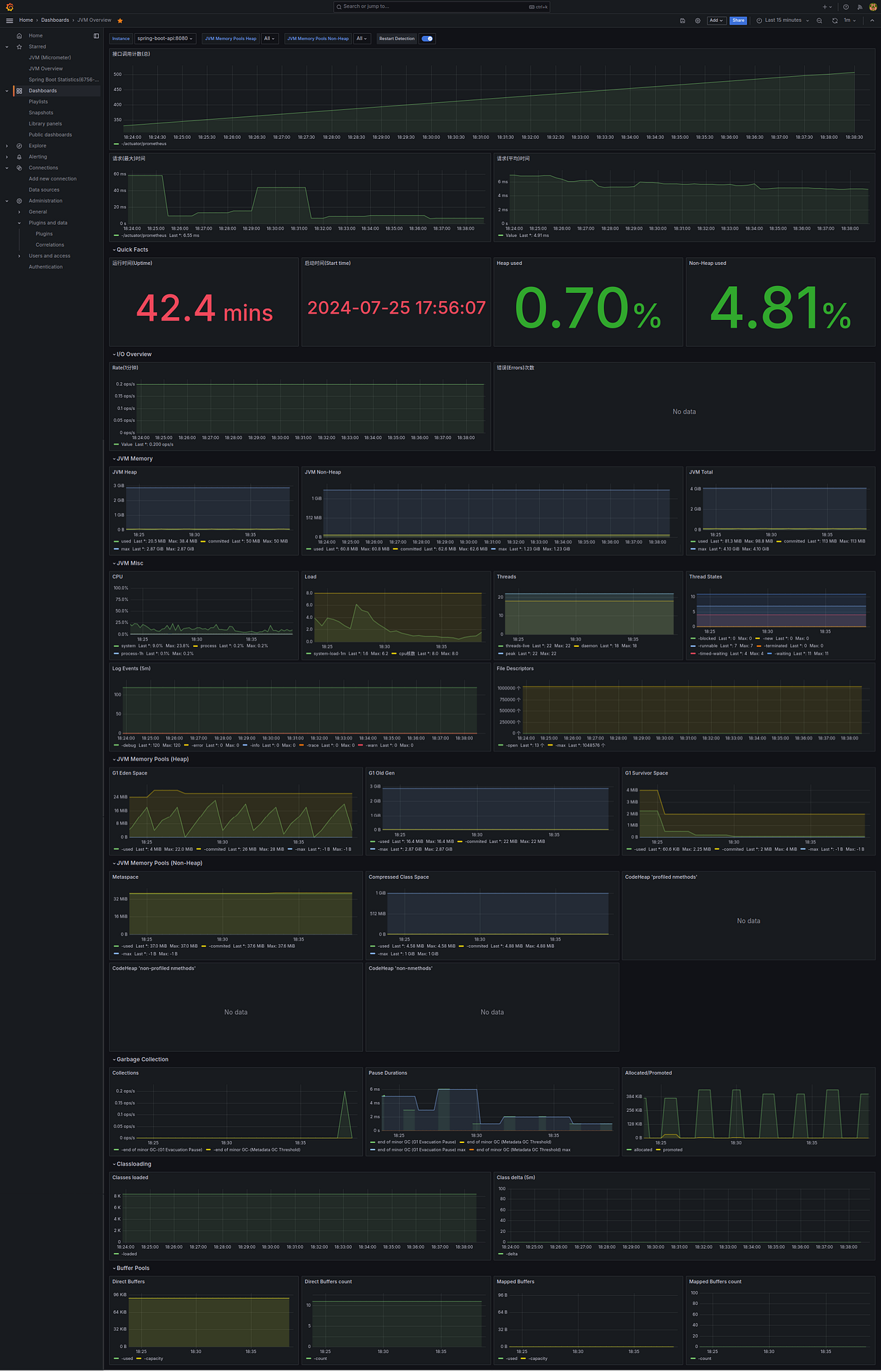
We have already configured Prometheus data sources. > Connections > Data sources.

We can create our Dashboard or use them from the Grafana marketplace. For this story, we have used the following dashboard:

Conclusion
Well done !!. This story explored using Prometheus and Grafana to monitor a Spring Boot app.
The complete source code is available on GitHub.
Support me through GitHub Sponsors.
Thank you for Reading !! See you in the next story.
References
- https://prometheus.io/docs/prometheus/latest/getting_started/
- https://grafana.com/docs/grafana/latest/administration/provisioning/#data-sources?pg=oss-prom&plcmt=deploy-box-1
- https://grafana.com/docs/grafana/latest/dashboards/build-dashboards/import-dashboards/?pg=dashboards&plcmt=hero-btn2
- https://grafana.com/grafana/dashboards/