
This post will explain implement multi-tenancy in the Keycloak server using the Organization feature.
· Prerequisites
· Overview
∘ What is Keycloak Organizations?
∘ Key Features of Keycloak Organizations
· Implementation Steps
∘ Enable the Organization Feature
∘ Create new Organizations
∘ Add Members to the Organizations
∘ Authenticating members
∘ Mapping organization claims
· Conclusion
· References
Prerequisites
This is the list of all the prerequisites:
- A ready-to-use Keycloak server with one realm and one client.
- Keycloak 26 or higher
This story will use the same setup (realm and client) as used in our previous story:
Manage Keycloak using Admin REST API
Overview
What is Keycloak Organizations?
The organization is the entry point for using Keycloak’s IAM capabilities to address Business-to-Business (B2B) use cases. It enables multi-tenancy within a realm so that users can access protected resources from a realm but with a more restricted and controlled context, the organization to which they belong.
Starting with Keycloak 26, the Organizations feature is fully supported.
Key Features of Keycloak Organizations
It provides some of the core capabilities needed to manage organizations, such as:
- Manage members
- Onboard organization members using the invitation links
- Onboard organization members by federating their identities through identity brokering
- Identity-first login and organization-specific steps when authenticating in the scope of an organization
- Propagate organization-specific claims to applications through tokens for authorization purposes.
Implementation Steps
Enable the Organization Feature
To use organizations, we have to enable the feature for the current realm.
- Navigate to the Admin Console.
- Select the realm where you want to create the organization.
- In the Realm Settings, enable “Organizations” and “Save”
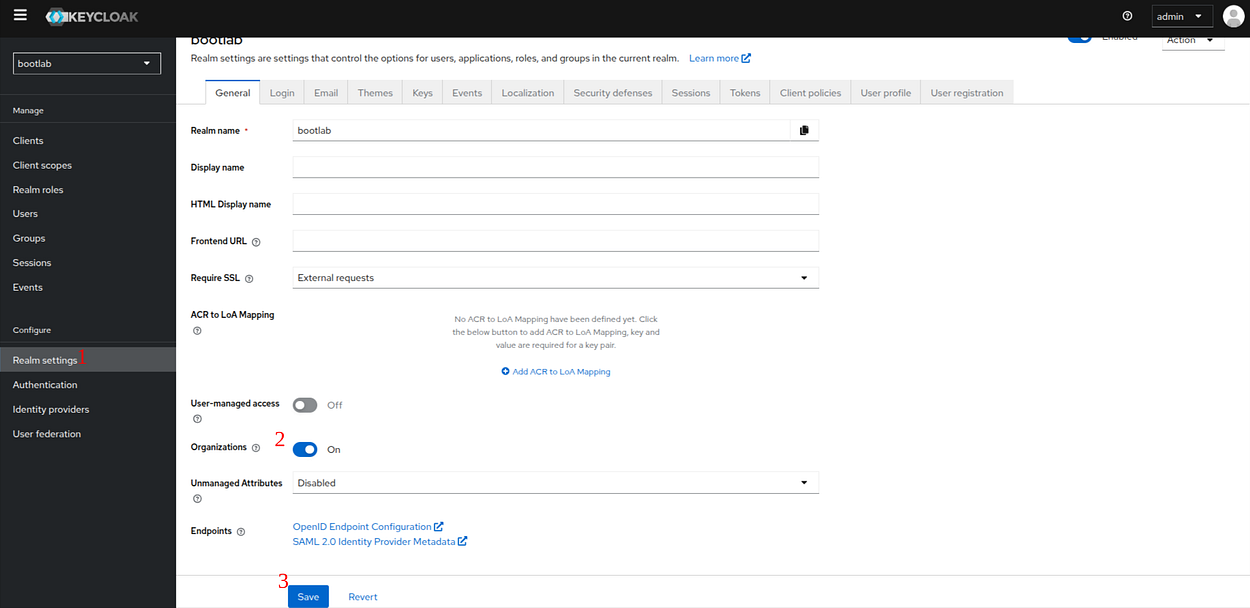
Once enabled, we can manage organizations through the Organizations section available from the left menu.
Create new Organizations
- Go to the Organizations section.
- Click the “Create Organization” button and fill in the required details.

For this story, we will create 2 different organizations: mydemo and labs

An organization has the following settings:
- Name: A user-friendly name for the organization. The name is unique within a realm.
- Alias: An alias for this organization, used to reference the organization internally. The alias is unique within a realm and must be URL-friendly, so characters not usually allowed in URLs will not be allowed in the alias. If not set, Keycloak will attempt to use the name as the alias. If the name is not URL-friendly, you will get an error and will be asked to specify an alias. Once defined, the alias cannot be changed afterwards.
- Redirect URL: After completing registration or accepting an invitation to the organization sent via email, the user is automatically redirected to the specified redirect URL. If left empty, the user will be redirected to the account console by default.
- Domains: A set of one or more domains that belong to this organization. A domain cannot be shared by different organizations within a realm.
- Description: A free-text field to describe the organization.

Add Members to the Organizations
Once the organizations are created, we can add user members. An organization member is basically a realm user but with a link to a single organization. They are logically separated from other users in a realm so that you know exactly which users belong to an organization.
Let’s create users based on the following table:

As we can see, user 3, “Alice,” exists as the realm user but is not assigned to any organization. Also, his email address does not match any organization’s domain.
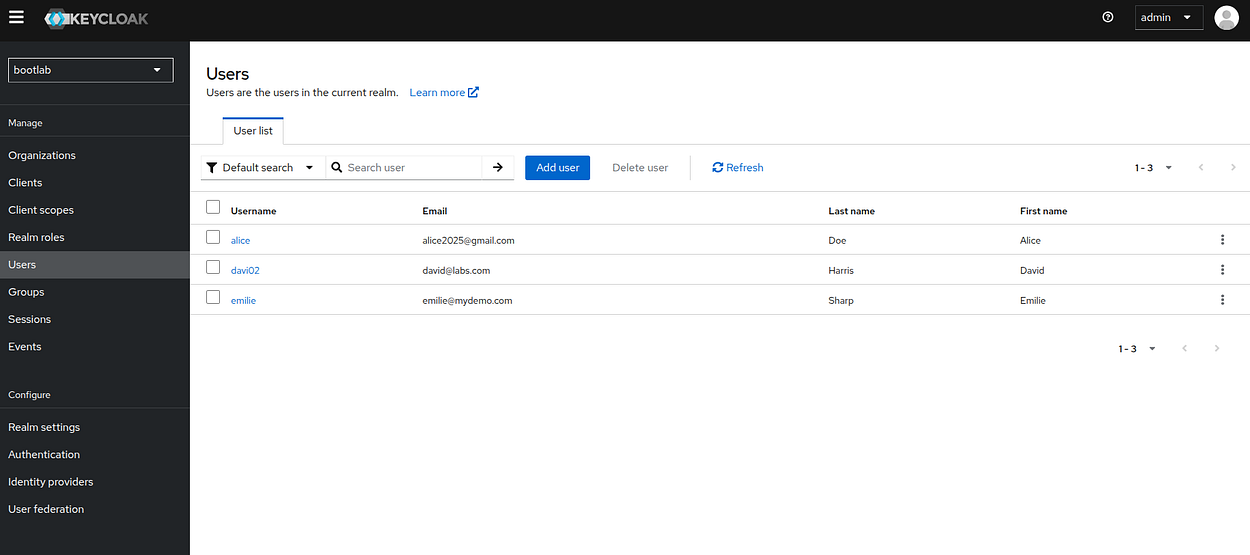
Set a password for each user so they can authenticate to the realm.
There are different ways to add, or onboard, a member to an organization:
- Adding an existing realm user as a member
- Through an identity provider associated with an organization
- Sending an invitation to create a new account
- Sending an invitation to an existing user to join an organization
In the user details, we can find a new tab “Organization”, click on the “Join organization” button

Select an organization and click Join

Organization members are visible in the Members tab when managing an organization. This tab lists all organization members and allows you to add new members, edit existing members, and delete existing members.

Once a user is a member of the organization, that user can authenticate to the realm just like a regular user and use any credential supported by the realm.
Authenticating members
When you enable organizations for a realm, user authentication is changed. If the user is recognized to be authenticating in the context of an organization, the authentication flow changes on a per-organization basis.
When a realm is created, the authentication flows are automatically updated to enable specific steps to authenticate and onboard organization members. The updated authentication flows are:
- browser
- First Broker Login
Let’s try to log in to the realm with the URL : http://localhost:8080/realms/bootlab/account/

If the user’s email matches an organization’s email domain, or if the email domain matches the domain set to the identity provider, the user is automatically redirected to the organization realm to authenticate.

If the login is successful, the user is redirected to the User Accounts page.

Case of User 2: david@labs.com

Case of User 3: alice2025@gmail.com
Remember that this user exists in the Realm but does not have an organization. In this case, they can also be authenticated, but with an empty organization section. The administrator can configure the existing authentication flow to meet your use case.

Case of the user does not exist
In the case of a user that does not exist, if that user tries to authenticate using an email domain that matches an organization domain, the identity-first login page appears again with a message that the username provided is not valid. At this point, no need exists to ask the user for credentials.

Mapping organization claims
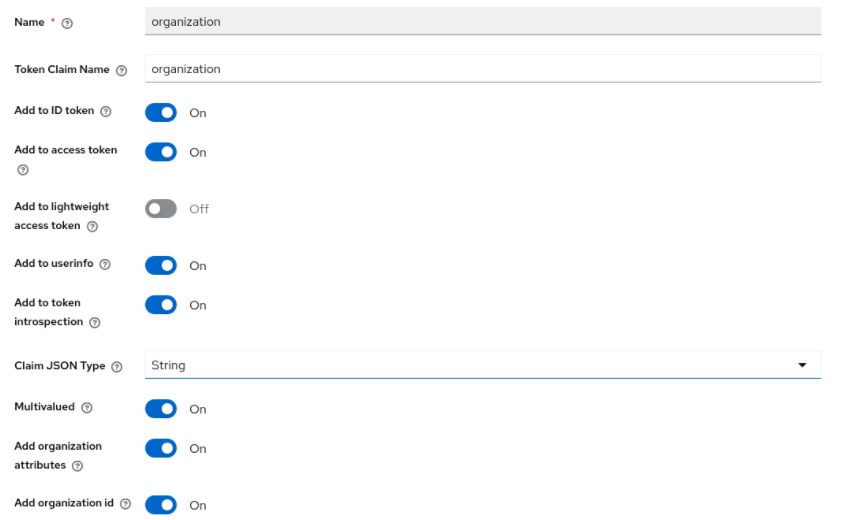
To map organization-specific claims into tokens, a client needs to request the organization scope when sending authorization requests to the server. When authenticating in the context of an organization, clients can request the organization scope to map information about the organizations where the user is a member.
As a result, the token will contain a claim as follows:
"organization": {
  "mydemo": {
    "id": "d109ff87-2326-43d3-8832-b4cc90d3380e",
    "attr1": [
      "value1"
    ]
  }
}
By default, the organization id and attributes are not included in the organization claim. To include them, edit the mapper and enable the Add organization id and Add organization attributes options, respectively.
Including attributes in the organization claim
Conclusion
Well done! Organization in Keycloak is a way to represent a tenant, such as a company, team, or department, so you can isolate data, access control, and administration between different groups of users.
Support me through GitHub Sponsors.
Thank you for reading!! See you in the next post.

